Moving over from BridalLive
Bring your vendors, inventory, customers, appointments, open tickets and sales history over. Three ways, easiest first: sign in with your BridalLive login, use an API key, or upload BridalLive's own exports. Or ask BridalIQ to do it for you.
The owner does this from Settings, Move over from BridalLive. Nothing in BridalLive changes. You can run it again any time; anything already copied is skipped.
Sign in with your BridalLive login (most stores)
You don't need an API key or any exports. At the top of Move over from BridalLive, type the username and password you use for BridalLive and press Sign in. Only the owner can do this.
- What is read: your departments, vendors, inventory, customers, appointments, open tickets, payment plans and purchase orders, with the same read-only lists BridalLive's own screens use. BridalIQ never changes, adds or deletes anything in BridalLive.
- Your password is not kept. It is sent once, straight to BridalLive, to sign in. BridalIQ keeps only the pass BridalLive hands back, locked, until the copy finishes (24 hours at the latest), then deletes it. It is never shown back, never written in the history and never sent to the AI.
- Keep me connected until switch day (optional): tick it if you want switch day's final copy to run without signing in again. Your login is then kept locked, like a vendor website login, and deleted when the switch is finished or after 30 days. Remove my BridalLive login deletes it any time.
- More than one store on one login? Pick the store you are moving, and press Sign in to this store.
- BridalLive asks to approve a new device? Type the code BridalLive gives you (it comes to you, or from someone at your store who can authorize devices) and press Sign in with the code.
- Wrong password? You get one plain message and can try again. After two refused passwords in a row, BridalIQ stops trying for an hour so your BridalLive account isn't locked. Check your login at app.bridallive.com first.
- BridalLive asks for any other verification code? BridalIQ can't answer it for you: use the exports below instead. Nothing is saved.
- If the sign-in ends part-way (BridalLive ends passes after some hours), the copy waits. Sign in again and it carries on; nothing already copied is lost or copied twice.
Then press Copy everything now. The history (Settings, History) shows who connected, when, and what was read, never the login.
Read my whole BridalLive account
Press Read my whole BridalLive account (here, or in Plan your switch) to build your move plan from everything in BridalLive: contacts and wedding parties, leads, appointments and requests, tasks, interviews, online payments, signatures and measurements, the prom registry, items, vendors, transactions of every kind, quotes, payment plans, gift cards and store credit, purchase orders, receiving, employees, time punches, templates and settings. For each part it shows how many records there are, from when to when, the money involved (what's still owed, deposits held, gift cards and credit owed, stock at cost), and where it goes in BridalIQ, or why it stays behind.
- It reads politely (about two requests a second, in small pages) and you can see where it is ("Reading payment plans…" with how many parts are done). If it pauses, press Carry on.
- A part BridalIQ can't read with your login is marked Couldn't read this part: use the export for it. The rest carries on.
- Anything about money is a question for you in Plan your switch, never a guess.
- Only the shape of your data goes to the AI (counts, dates, totals, field names and five sample rows with names, emails, phones, addresses and notes masked), and only if you allowed AI for the planner. Card numbers and saved-card tokens are never kept or sent.
Use an API key (BridalLive Elite plan only)
Stores on BridalLive's Elite plan can open Use an API key, enter the Retailer ID and API key (BridalLive, Settings, Account, API Access), and press Connect, then Copy everything now. The key is stored locked and staff never see it.
Upload exports
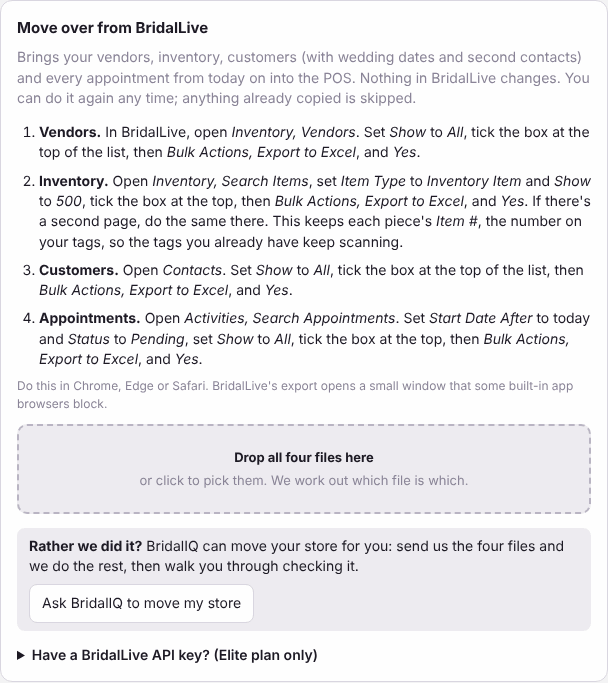
1. Export the files from BridalLive
Sign in to BridalLive yourself in Chrome, Edge or Safari. (BridalLive's export opens a small window that some built-in app browsers block.) For each list, tick the box at the top, then Bulk Actions, Export to Excel, and Yes:
- Vendors: Inventory, Vendors. Set Show to All.
- Inventory: Inventory, Search Items. Set Item Type to Inventory Item and Show to 500. If there is a second page, export it too. This keeps each piece's Item #, so your tags keep scanning.
- Customers: Contacts. Set Show to All.
- Appointments: Activities, Search Appointments. Set Start Date After far back (like 1/1/2020), Status to All and Show to All. Visits ahead are booked here; past visits come over as Completed or No Show (with how it went, when the file says), and nothing is sent for them.
Then the open business, from Reports. Each one: set the filters, Run Report, then Export to Excel:
- Tickets and sales history: Sales Reports, Transaction Journal, and the Transaction Item Journal (the items on each ticket). Set Trx Sts to All (not Pending) and Trx Start Date far back, like 1/1/2020. Open tickets come over as open tickets; closed ones are your sales history.
- Payments: Sales Reports, Payment Journal, with the same settings. Payments come over as they were taken; nobody is charged.
- Waiting for pickup and on order: Inventory Reports, Items Awaiting Pickup and Items On Order.
- Payment plans: Point of Sale, Search Payment Plans. It has no export button: show all the plans on one page, select the table (Trx #, Plan Period, Contact, Starting Balance, Bal. Due, % Paid, Next Installment), copy it into a spreadsheet and save it (Excel or CSV). Each open ticket's schedule goes on its ticket here. With an API key, plans come over with the key instead.
- Closed purchase orders (optional): Inventory, Search Purchase Orders, set the Status filter to Complete, show all, then export or copy the list. The list has no Status column, so tick Are these all complete POs? on its card when you add it. For reference only.
2. Drop them into the POS
- Drag all the files onto Drop all the files here, or click it and pick them.
- The POS works out which file is which and matches the columns. If a file says Pick a column for..., press Fix the columns and choose the right column (or Ask AI to match them if it is offered).
- Press Add everything. Vendors go in first, then inventory, customers and appointments, then the open tickets, their items, payments, pieces waiting for pickup and purchase orders. Each file shows how many were added.
- After open tickets, the Open tickets check compares every ticket's total and balance with BridalLive's, to the cent. The Sales history check does the same for closed tickets and shows each year's sales.
3. Check it
- Pieces on hand and the retail and cost totals should match BridalLive's Items On Hand report.
- The customer count should match BridalLive's Contacts list.
- The upcoming appointment count should match Search Appointments (an exact double-booking comes over once).
- The balances due should say match. If a ticket didn't, it gets one "Balance carried over from BridalLive" line so her balance is still right, and the check lists it.
- Pieces waiting for pickup stay your stock, held for the bride, until her ticket is paid in full. Those already paid in full in BridalLive are hers, so pieces on hand go down by them. The open tickets check says how many of each.
- Sales history: the totals should say match, and each year's sales should be close to BridalLive's sales reports for that year (counted on the day each sale counts for your store). A ticket whose shipping or fee lived on the ticket only gets one "Difference from BridalLive's total" line. Tickets with a payment missing from the Payment Journal are listed; they stay closed.
- Look for test records and merge or remove them with Duplicates on the Customers screen.
Payment plans and closed purchase orders
- Payment plans go on the ticket that moved (it still shows "BridalLive L 701"), with each payment's due date and amount and what was already paid. They show on the ticket, on Register, Payment plans, and on her page, and reminders go out from here on. Nothing is charged. A payment already late in BridalLive shows as late but gets no late reminder.
- A plan whose ticket didn't come over is listed under Couldn't match after the import. Bring that ticket's Transaction Journal and drop the plans file again, or set the plan up on the ticket by hand (Payment plans). A ticket that already has a plan here keeps it.
- Closed purchase orders keep BridalLive's PO numbers. They are for looking things up only: not on order, nothing goes into your stock, nothing is received and no bill is made. Find them on Orders & Vendors, Purchase orders with From BridalLive (closed), or type the PO number in the search box. A PO that came over as on order is never made twice.
- From the copied Search Payment Plans list: a plan marked Complete is kept as history. The payments still to come are rebuilt from Plan Period, Bal. Due and Next Installment only when the balance splits evenly on the plan's dates (a few cents on the last payment is fine). Otherwise the balance comes over as one payment on the plan's end date, with reminders off, and you get a To do to set the schedule up again. A plan showing Error also gets a To do: the charge didn't go through in BridalLive.
- AutoPay doesn't carry over. Her card stays with BridalLive's card processor, so every plan comes over as manual payments. A plan that ran on AutoPay (or had a card) gets a To do to ask her to put a card on file here. The copied Search Payment Plans list doesn't show AutoPay, so from it you get one To do to check in BridalLive which plans had a card.
- The API key import brings open payment plans too, onto the tickets already moved from the Transaction Journal file (add that file first, then run the key import again). Closed purchase orders still come from the file.
Rather we did it?
- Press Ask BridalIQ to move my store.
- Tell us anything we should know: the best time to reach you and when you'd like to switch.
- Press Send request. BridalIQ will get in touch to set up a time and tell you which files to send, then walk you through checking the result.