Check-in and outcomes: purchased, still deciding, walked away
Mark brides as confirmed and checked in, then record how the visit went so your close rate and follow-ups take care of themselves.
When she arrives
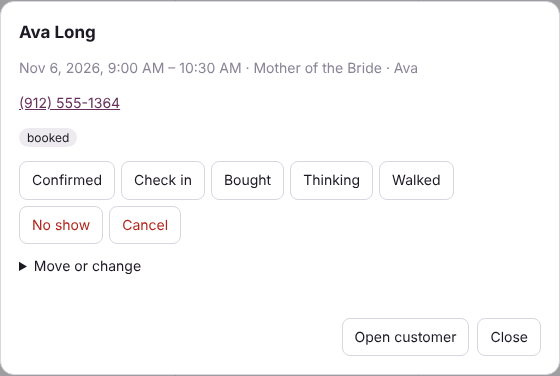
- Click her appointment on the Calendar (or on Home under Today, where each appointment has its own Check in button).
- Press the big Check in button at the top of the box.
- Pick her consultant in the Consultant box next to it. You can pick or change the consultant before or after she is checked in; it saves as soon as you pick.
Reschedule
Press Reschedule on her appointment box (Calendar or Home) or next to a coming appointment on her profile (Appointments tab, or Next appointment on Overview). Pick a day, tap one of the open times (or type a time), keep or change the consultant and press Save new time. She gets her new confirmation as usual.
When the visit ends
How it went is worked out for you
You do not have to go back and mark how the visit went. The box works it out from her tickets and payments that day and says why:
- Purchased: money was paid that day on a ticket with her gown or veil on it.
- Still deciding: a ticket was started for her that day and nothing is paid on it yet.
- She paid only for other things (a belt, an accessory): the box says what was bought and you pick how it went.
The buttons below stay: pick one to change what was worked out. A choice you make always wins.
To start her order, press Special order (or Sale, Layaway) at the top of the box. "Take a deposit" is no longer on this box.
The outcome buttons:
- Still deciding: she wants to think about it. She shows on To do › Customers, under Still deciding, for 14 days unless she books again, and the "Still thinking?" message can go out on its own.
- Walked away: she left without buying. She shows on To do › Customers, under Walked away.
- Coming back: she plans to come back (with mom, for a second look).
If her deposit is voided, or all of it is given back with nothing canceled or taken home, the visit goes back to what it said before. A manager can correct how a visit went under Correct how the visit went, with a reason; it is kept in the history. Visits marked Purchased by hand before this change, with no payment found, are listed once on To do as Marked Purchased — no payment found.
It closes by itself at the sale
When her ticket takes its first payment, her appointment today closes on its own: finished, linked to the ticket, and Purchased when the ticket has a gown or veil on it, at the time of the payment. She drops off the "here now" lists on Home and the phone. The minutes from check-in to the payment are kept, and from the appointment's start.
- Checked in: that appointment (the earliest, if she has two). Each bride or bridesmaid closes on her own ticket.
- Never checked in: her open appointment today closes too, timed from its start and marked not checked in.
- A quote, or a ticket with no payment yet, closes nothing.
- No appointment today: Take payment asks whether she was picking up or shopped without being checked in (then who helped her and when she arrived). See How did she come in?
Her other appointments, once she has purchased
When the payment closes her visit (her appointment, or a walk-in who wasn't checked in) and she has another appointment later today, the payment step asks: "She also has a 5:00 PM Bridal appointment today. Cancel it?" Press Cancel it or Keep it. Below, in smaller type, her shopping appointments in the next 30 days get the same choice.
- Fittings, pickups and alterations are never offered: she still needs them.
- Canceling works like Cancel on the Calendar: it is kept in the history, the time is free again, and brides on the waitlist who could take it are shown to offer it to. The appointment's note says "Canceled: purchased earlier today".
- She is in the store, so no message is sent to her.
- Staff can answer; no manager needed. Offline, the answer is saved on the device and sent when the internet is back (unless the appointment was moved or she checked in for it meanwhile).
- An appointment she didn't check in for closes at the sale only if it starts within 2 hours; a later one is left for this question.
Each consultant sees her own times in My time to sale (Home, the phone and Settings › You). Managers see everyone's in Reports › Time to sale.
If she never came, press No show. Press Reopen to undo a finished, no-show or canceled appointment.
Confirming tomorrow's brides
Home lists everyone booked for tomorrow who isn't confirmed yet, with their phone number. Call or text them, then open the appointment and press Confirmed.
Where the numbers show up
Home counts today's appointments, who came in, who purchased, the close rate (purchased divided by came in) and no-shows. Managers see the same by consultant on the Reports screen.